Ready to make it easier for local customers to find your awesome business on Google Search and Maps? Setting up your Google Business Profile (GBP) is the absolute best place to start! It might seem a bit daunting, but stick with us – here’s a straightforward guide to get you sorted.
Step 1: Head to the Google Business Profile Manager
First things first! Make sure you’re signed into your Google account. If you don’t have one, it only takes a minute to create one.
Once you’re logged in, pop over to the Google Business Profile Manager page online and click that friendly “Manage now” button. Easy peasy!

Step 2: Add Your Business Name & Type
Alright, next up: type in your official business name.
- Check if you’re listed: Sometimes, your business might already be suggested in the dropdown list (Google gets info from various places, and anyone can suggest a new place). If you see yours, great – select it! (If it says someone else already manages it, you’ll need to go through a process to claim it, which Google will guide you on).
- Add if new: If your business name doesn’t pop up, no worries at all! Just click to add it yourself.
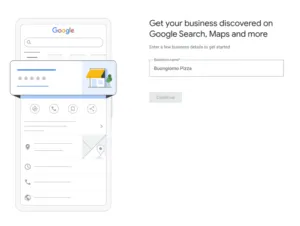
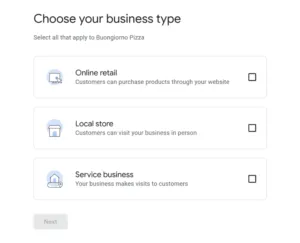
Now, choose your business type. The main options are usually:
- Online retail: Selling products primarily through your website.
- Local store: A physical shop customers visit (like a retail store, cafe).
- Service business: You provide services, either at your location or by visiting customers (like a tradie, consultant, cleaner).
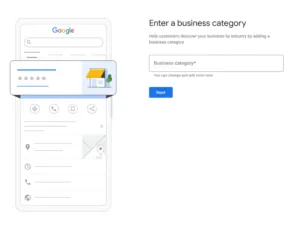
You’ll then add a business category that best describes what you do (e.g., “Plumber,” “Cafe,” “Hair Salon,” “Accountant”). Be as specific as possible with your primary category!
(Note: Depending on your type/category, Google might ask slightly different follow-up questions).
Step 3: Pinpoint Your Location (Where You Operate)
This bit is important for showing up in local searches!
- Got a Shopfront? If customers visit you at a physical address (like a shop, clinic, or office), enter your full street address here. Make sure it’s accurate!
- Mobile Business / Service Area? If you’re a tradie, cleaner, consultant etc., who travels to your customers and they don’t come to your business address (e.g., your home office), you generally don’t put your home address here. Instead, Google will ask you to define your Service Area(s) – the suburbs, towns, or regions you cover. Be realistic about how far you travel!
- Hybrid Business? Do you have a physical location and you visit/deliver to customers (like a restaurant with dine-in and delivery)? You’ll typically enter your main business address and define your service/delivery areas.
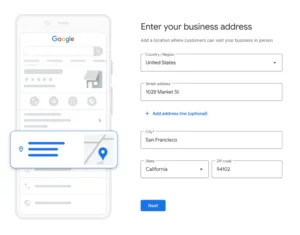
Step 4: Share Your Contact Details
Nearly there! Help customers get in touch:
- Add your main business phone number.
- Add your business website address. While technically optional, having your website listed is highly recommended!
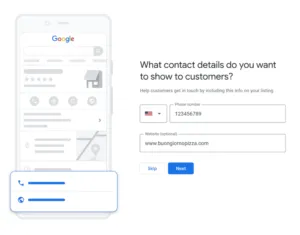
Step 5: Verify Your Business (The Final Check!)
This is Google’s way of making sure your business is legitimate and located where you say it is. After entering your details, click “Continue” and Google will usually offer one or more ways to verify:
- Phone Call or Text: Often the quickest – they’ll call or text a code to your business number.
- Email: Sending a code to an official business email address.
- Video: Might involve a live video call or recording a short video showing your workspace, signage, or vehicle.
- Postcard: The traditional method – Google mails a postcard with a verification code to your listed business address. This naturally takes longer (allow a week or two usually).

Just follow the specific instructions Google provides for the method offered to you.
- Waiting Period: Verification via phone, text, or email is often fast. Postcards take time. Sometimes, Google needs a few days for a manual review, even after you enter a code. Be patient!
- Good News: While you wait to be fully verified, you can usually still start editing and adding more info to your profile (like photos, posts, detailed descriptions). These updates just won’t be fully visible to the public until verification is complete.
- Instant Verification? Sometimes, especially if your business website is already verified with Google Search Console using the same Google account, your profile might get verified instantly. Bonus!
- Multiple Locations? If you have several physical locations for the same business (like a chain or franchise), look into Google’s bulk verification process to potentially save time.
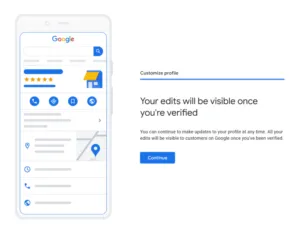
And You’re Set!
Getting your Google Business Profile set up and verified is a massive step towards boosting your local visibility and helping Aussie customers find you online. Keep your information accurate, add engaging content like photos and posts, and of course, start thinking about gathering those all-important genuine Google reviews!